Beyond the Frame: A Step-by-Step Workflow for FLUX Model Image Outpainting
Unlock the full potential of your images with FLUX model outpainting. Extend borders, fill missing parts, and enhance quality using Stable Diffusion techniques and AI-powered tools. Learn how in this workflow guide.
- Difficulty
- Beginner-friendly
- Reading Time
- 4 min
Workflow Overview
Unlock the full potential of your images with FLUX model outpainting. Extend borders, fill missing parts, and enhance quality using Stable Diffusion techniques and AI-powered tools. Learn how in this workflow guide.
Content type: Workflow
Primary intent: Download
Required Models
- Flux
- Sd
Setup Notes
- Install the required models before opening the workflow template.
- Expected skill level: Beginner-friendly.
Workflow Overview
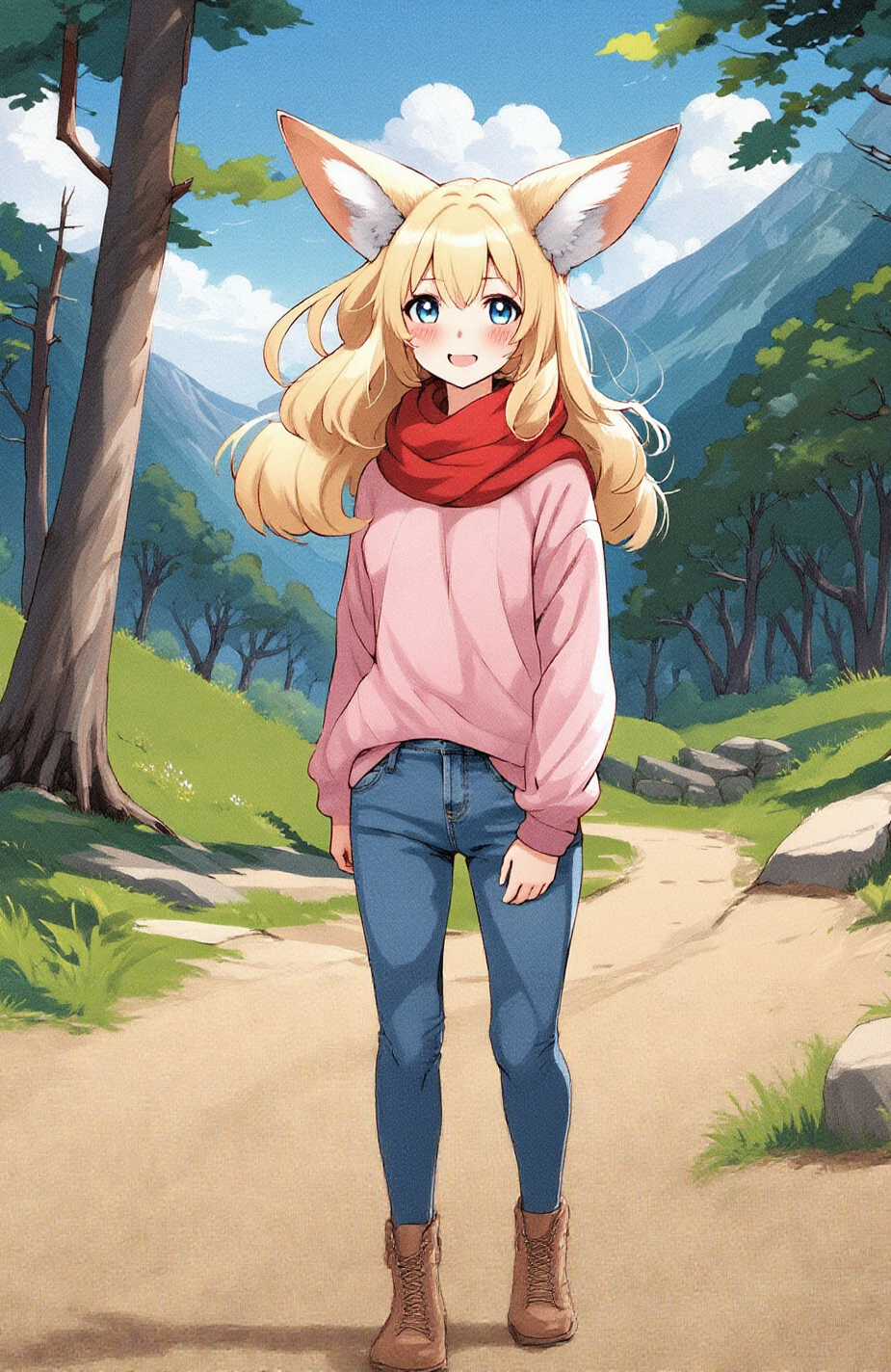
This workflow focuses on image outpainting using the FLUX model. It leverages Stable Diffusion techniques, incorporating FluxGuidance for controlled expansion, InpaintModelConditioning for inpainting missing areas, and VAEDecode for high-quality image reconstruction.
Ideal for:
Extending image borders
Filling missing parts
Enhancing image quality
Core Models
FLUX Outpainting Model (flux1-dev-fp8.safetensors)
Used for expanding images while maintaining consistency.
Stable Diffusion VAE (ae.safetensors)
Encodes and decodes latent space images.
Dual CLIP (clip_l.safetensors, t5xxl_fp16.safetensors)
Encodes text prompts into latent space.
UNET (flux1-dev-fp8.safetensors)
Handles diffusion for image generation.
Key Components (Nodes)
LoadImage
Loads the original image as input.
ImagePadForOutpaint
Expands the canvas size for outpainting.
FluxGuidance
Guides the expansion process to match the original style.
InpaintModelConditioning
Ensures seamless integration between extended and original content.
KSampler
Performs diffusion sampling (20 iterations).
VAEDecode
Converts latent space into real pixel images.
SaveImage
Saves the final outpainted image.
Workflow Structure
This workflow consists of four major stages:
1. Input & Preprocessing
LoadImage reads the base image.
ImagePadForOutpaint extends image borders.
CLIPTextEncode processes text prompts.
2. Computing Outpainting Features
FluxGuidance controls content generation.
InpaintModelConditioning optimizes conditions.
3. Generating Expanded Content
KSampler performs diffusion-based image expansion.
VAEDecode reconstructs the final image.
4. Output
SaveImage stores the expanded image.
Input & Output
Inputs
Base image
Expansion size (default: 400px left & right)
Text prompt
FLUX Model
VAE Model
Outputs
Expanded image
Seamless outpainting results
Saved final image
Considerations
Performance
Requires RTX 3090+ for optimal performance.
Troubleshooting
If outpainting looks unnatural, tweak FluxGuidance strength or modify text prompts.
If details are blurry, increase KSampler iterations.
Compatibility
Works with ComfyUI 0.4+, requires some custom nodes.
This analysis provides a comprehensive guide for beginners using FLUX for image outpainting in ComfyUI! 🚀