Meet the New ComfyUI-Manager
What are the new features in ComfyUI-manager?
Alongside the previous version, a refreshed interface for ComfyUI-Manager has been introduced. This enhancement prioritizes quicker discovery, safer installations, and more intuitive extension handling.
Pre-Installation Examination: Review comprehensive node details before setup, including individual components within bundles.
Group Installation: Add all absent nodes simultaneously, eliminating individual installation steps.
Conflict Identification: Detect compatibility issues between custom nodes early with visual alerts.
Security Improvements: Scanned nodes now block harmful components while notifying users about potential risks.
Advanced Search: Find extensions using bundle names or specific node identifiers.
Complete multilingual support for global users with an updated interface.
How to activate the refreshed ComfyUI-Manager interface?
Desktop installations: Enabled by default. Access via the new Plugin icon or navigate through Menu/Help → Extension Management.

Other versions: Install the pip edition manually:
Update ComfyUI to the latest version
Activate the ComfyUI environment
Install requirements:
# In ComfyUI folder
pip install -r manager_requirements.txt
Portable users: Create install_manager.bat:
.\python_embeded\python.exe -m pip install -r ComfyUI\manager_requirements.txt
pause
Launch with:
python main.py --enable-manager
Portable users modify launch arguments:
.\python_embeded\python.exe -s ComfyUI\main.py --windows-standalone-build --enable-manager
pause
How to revert to the previous Manager interface
The pip edition supports both interfaces. Desktop users navigate to Server-Config → Use previous Manager UI.

Common questions
Data migration notification
If encountering:Legacy ComfyUI-Manager data backup exists. See terminal for details.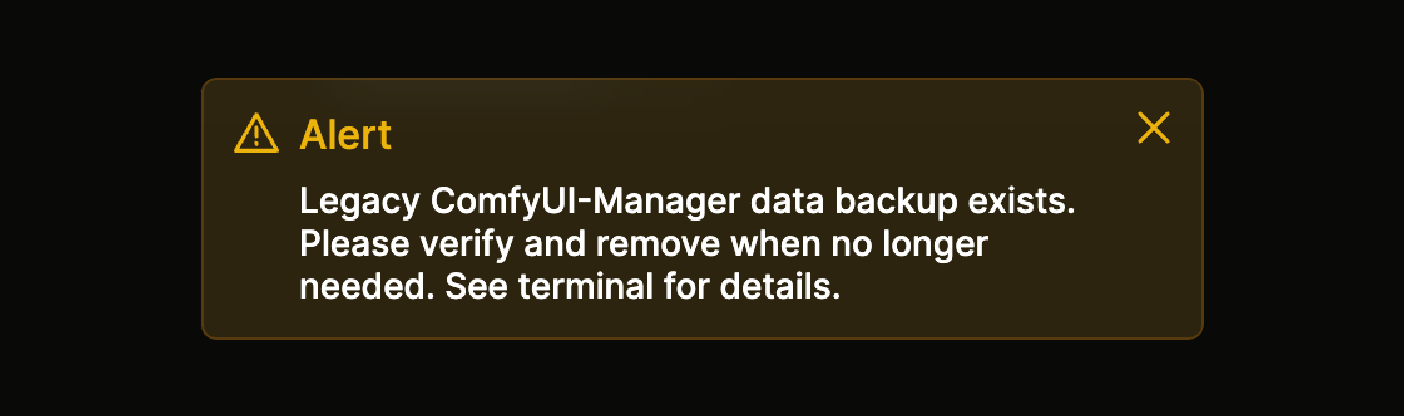
Occurs due to directory relocation (since v0.3.76) from
ComfyUI/user/default/ComfyUI-Manager/to securedComfyUI/user/__manager/. Backup remains at.../__manager/.legacy-manager-backupuntil removal. Earlier paths were vulnerable to web API access; new locations prevent unauthorized access. Follow this guide for resolution.Locating the Manager icon
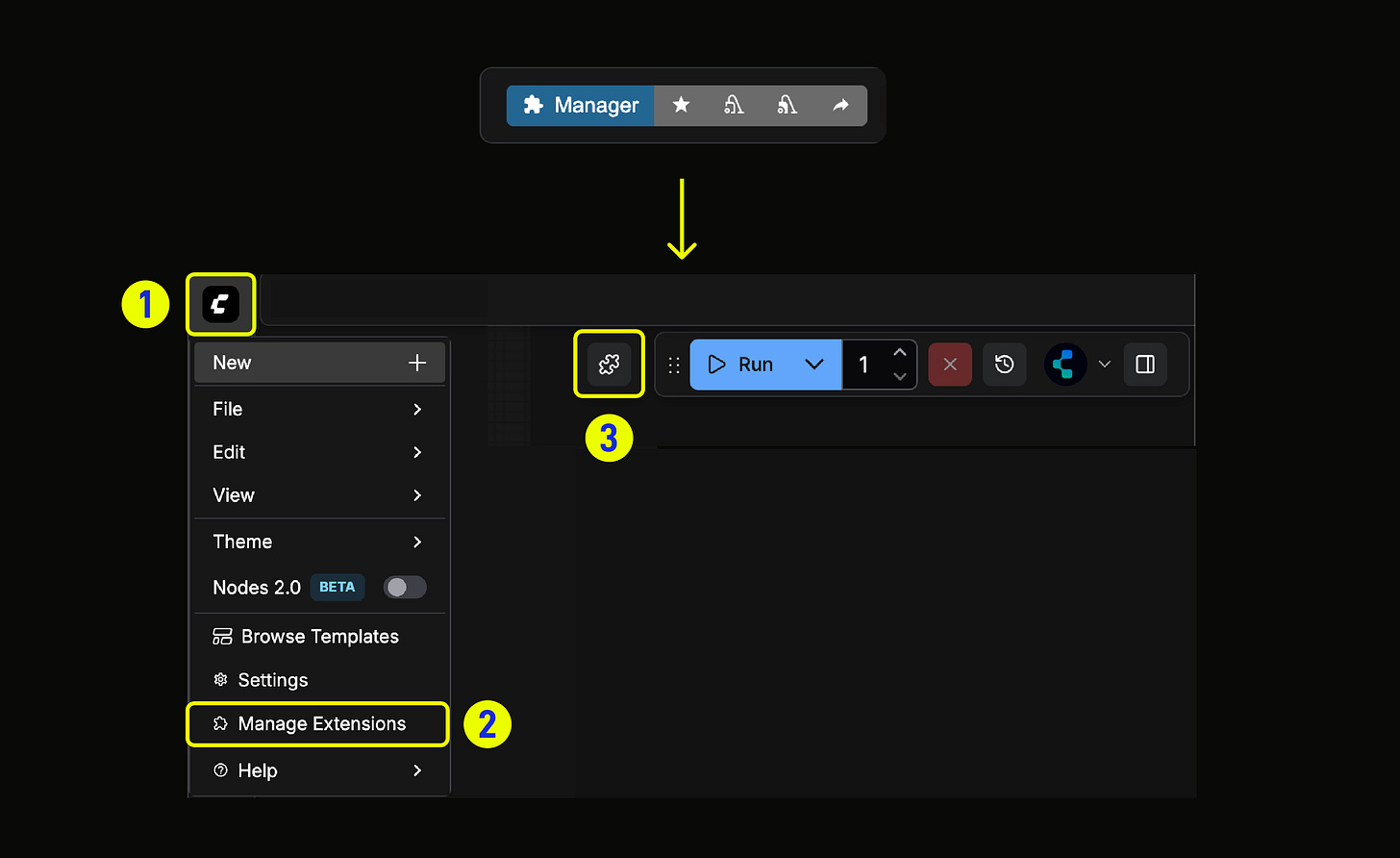
After pip installation, access via Plugin icon or Menu/Help → Extension Management.
Modifying live preview settings
Navigate to Settings → Execution → Live preview method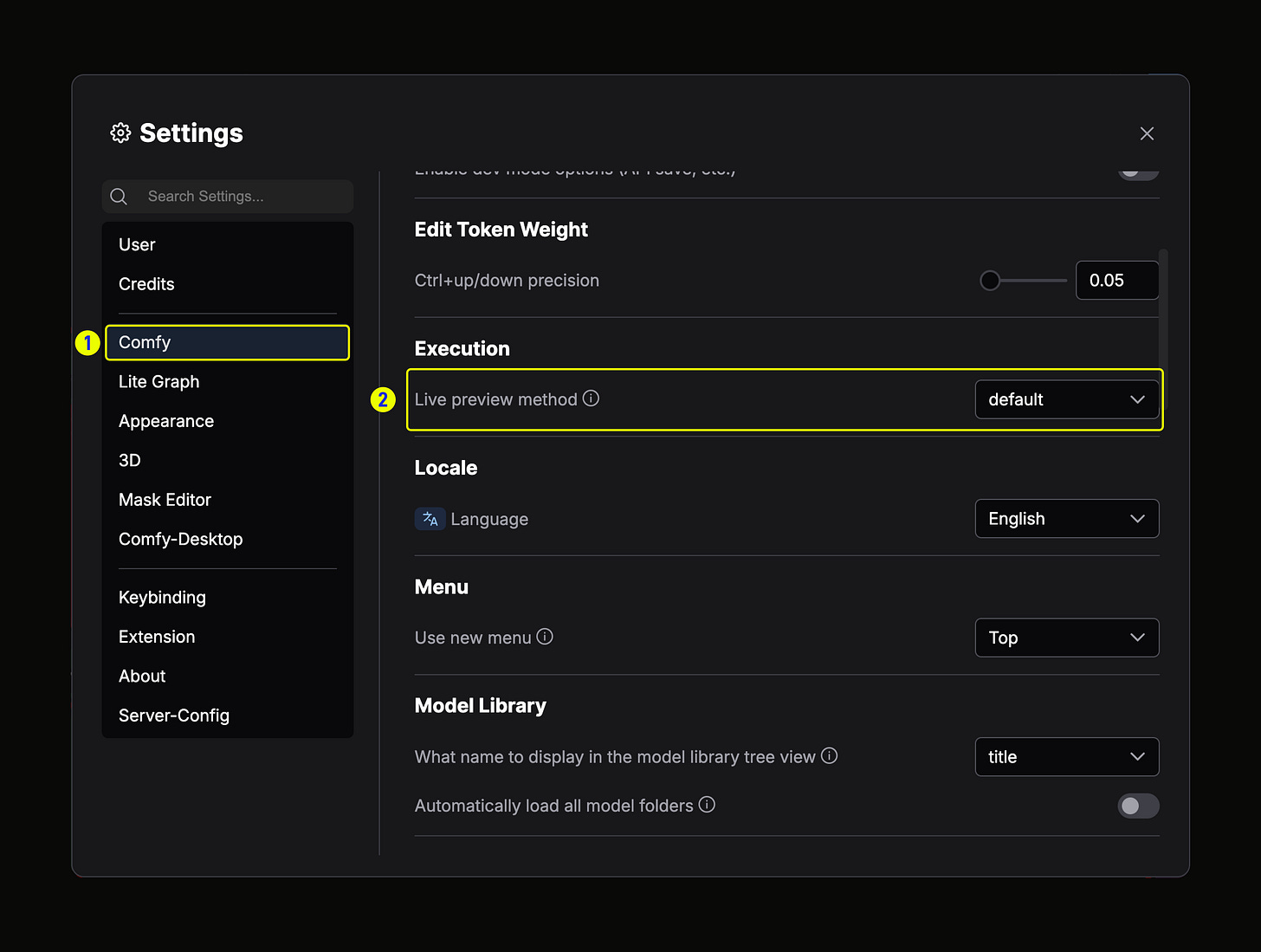
Removing previous Manager versions
Optional removal ofComfyUI/custom_nodes/ComfyUI-Managerif pip edition functions correctly. Retain if preferring the original interface.Troubleshooting extension menu visibility
Verify pip installation and ensure--enable-managerlaunch argument is used for non-desktop environments.
Experiment with the updated ComfyUI-Manager and share your experience here to help refine extension management.